Sound Editing
You can freely change how sounds are displayed and which ones are pinned, so tapping feels smoother.
Hiding sounds
On the sound grid in Preferences, long-press a sound to hide it. Hidden sounds don't appear in the Preferences grid or the quick sound switcher.

On the "All Sounds" screen you can swipe to hide a sound. Hidden sounds are shown at the bottom of All Sounds.
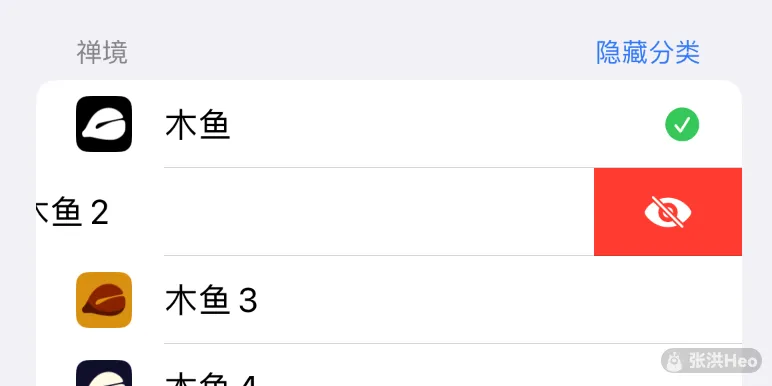
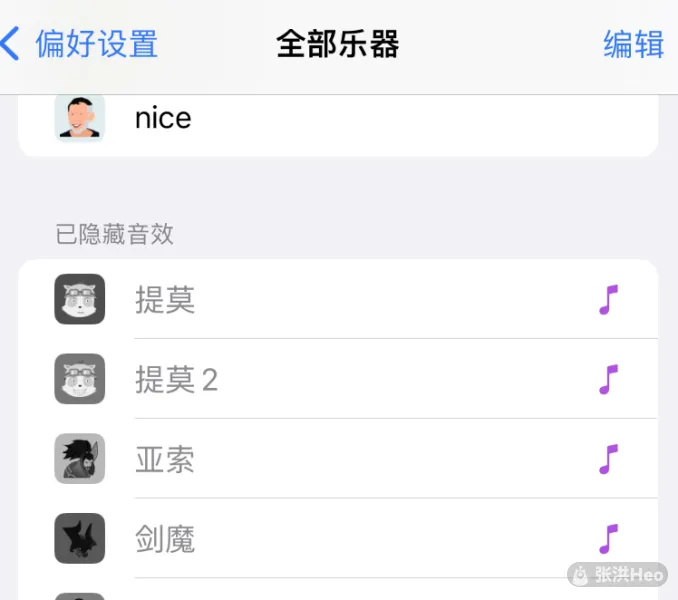
You can also tap the Edit button in the top-right corner to hide sounds.

Restoring sounds
On the All Sounds screen, swipe left to reveal an add button; tap it to restore.
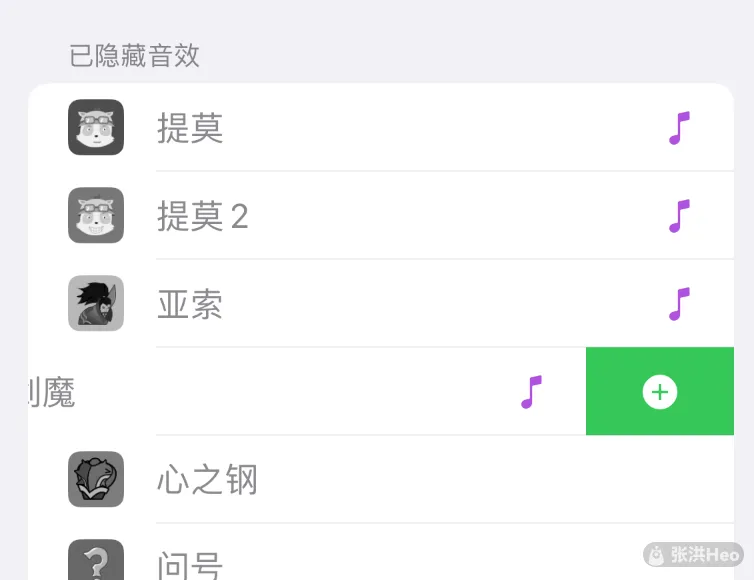
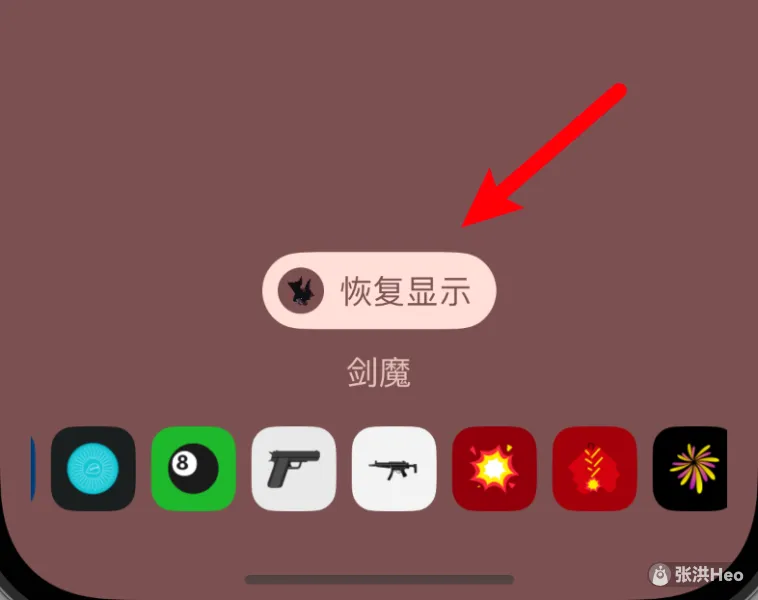
You can switch the All Sounds screen to hidden sounds, then tap "Restore Sound" to bring it back.
Pinning sounds
You can pin the sounds you like. Pinned sounds sort toward the front of the Preferences grid and the quick sound switcher.
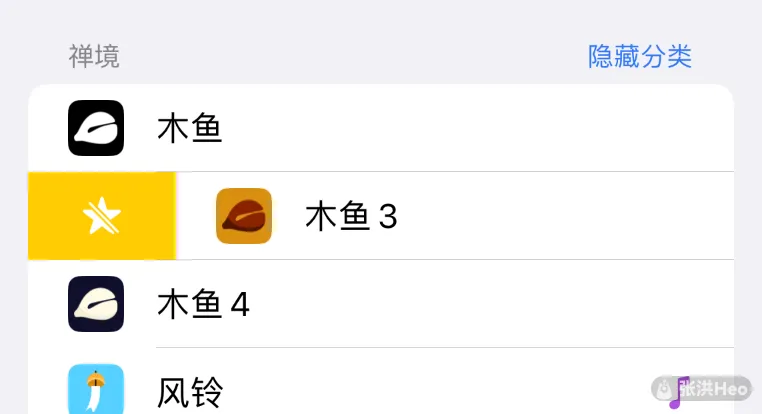
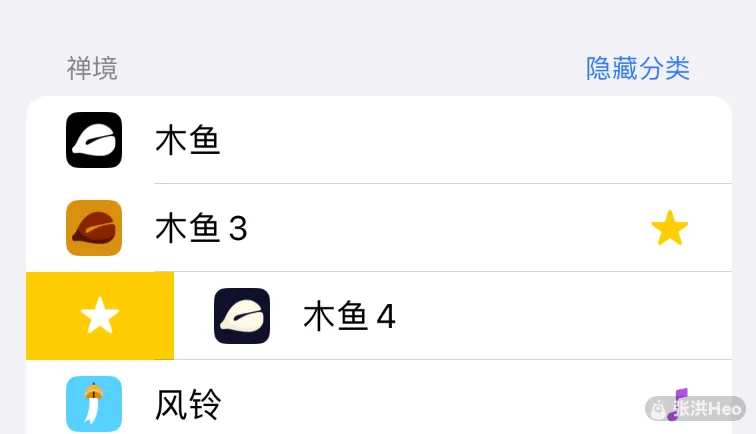
In the All Sounds list, swipe right and tap the star-shaped button.
Unpinning sounds
In the All Sounds list, swipe right on a pinned sound, then tap the unpin button.